Bypass UAC, Hide Console Windows, Run Apps in the Background with Hidden Start
Console applications and batch files are regularly run at Windows startup or in a schedule. The main inconvenience of this is that each application opens a console window that flickers on the screen. Hidden Start (or Hstart) is a lightweight command line utility that allows you to run console applications and batch files without any window in the background, handle UAC privilege elevation on Windows from Vista to 11, start multiple commands in the specified order, and much more.
Hstart_5.2-setup.exe (1 MB)
Updated on 30-Aug-2026, see what's new →
Hstart is a must have if you use batch files on an everyday basis for backups, various file sync and copy scripts, automatic source code compilation or code signing. Read the examples section below to see how it works out and how it can help you.
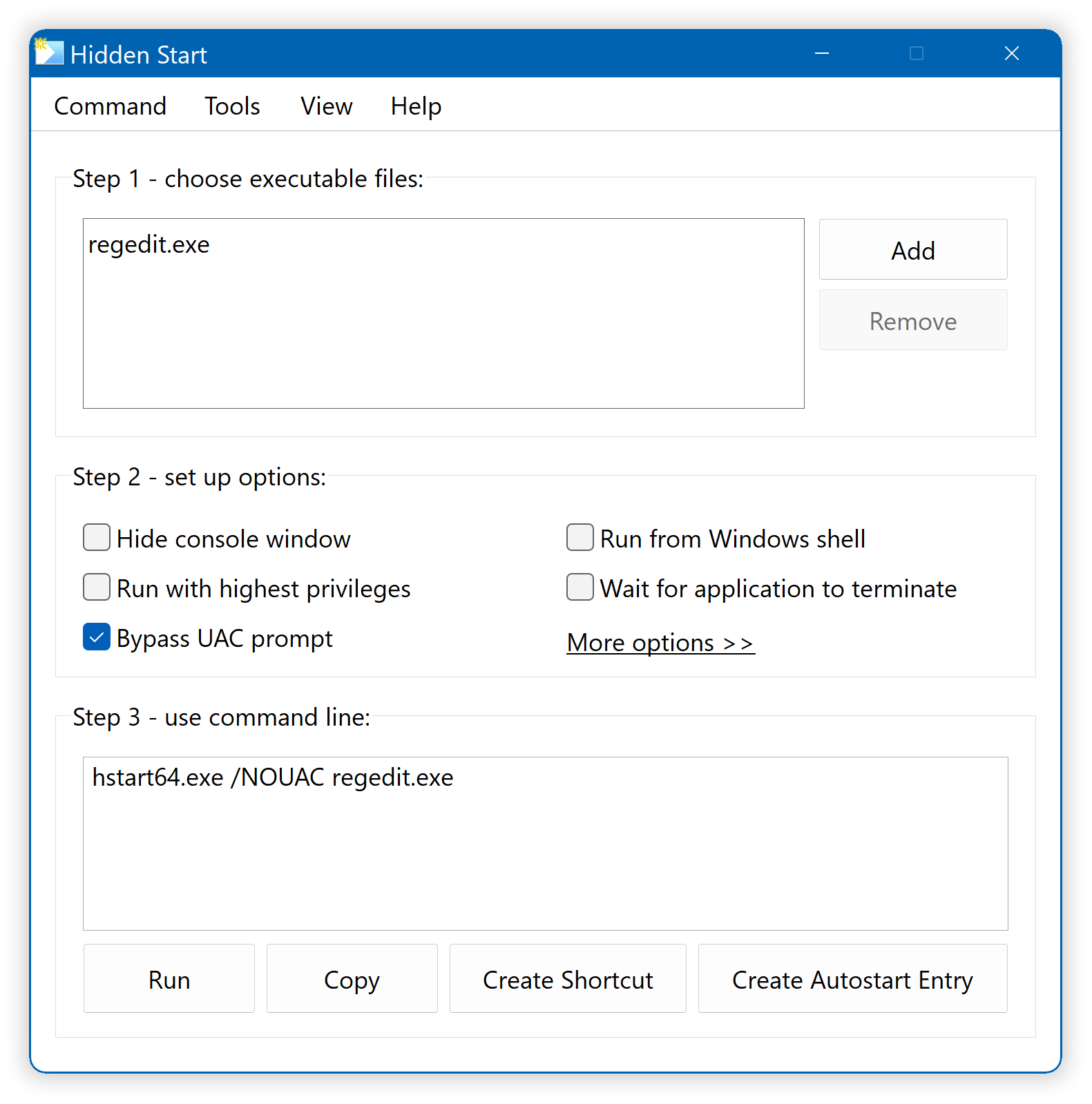
For your convenience, Hstart comes with a handy GUI tool:
Multiple commands with parameters:
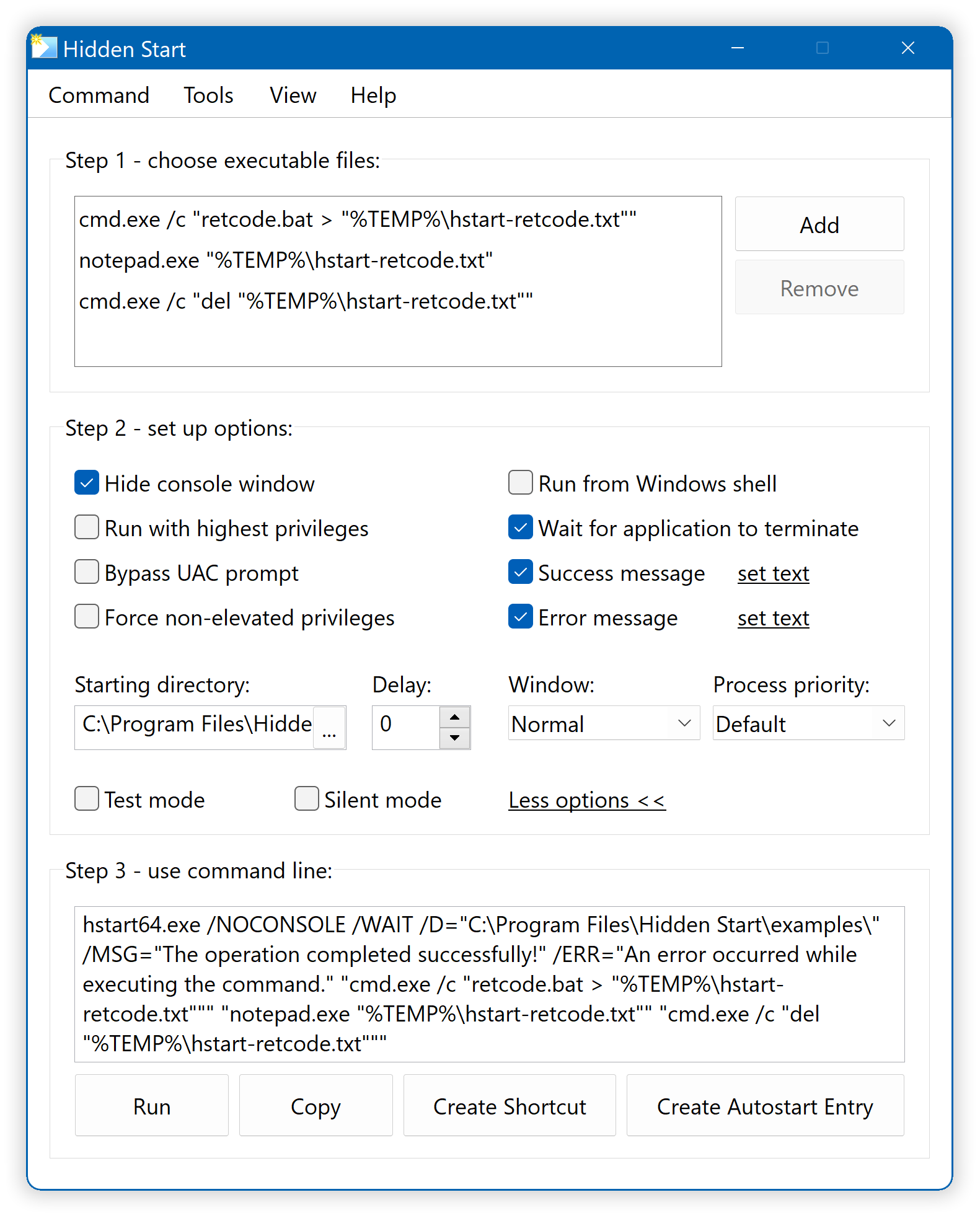
The GUI tool makes it easy to create complex command lines and test them immediately.
Examples of Usage
Hstart is usually started by entering the following command line:
It is possible to redirect the console output of batch files into a log file:
"cmd.exe /c "MyDailyBackup.bat > backup-log.txt""
The /IDLE command line switch means that the backup process will run with the lowest priority class, and /D="" sets the starting directory of the batch file (required if the command line or script contain relative paths).
Run Applications without UAC Prompt
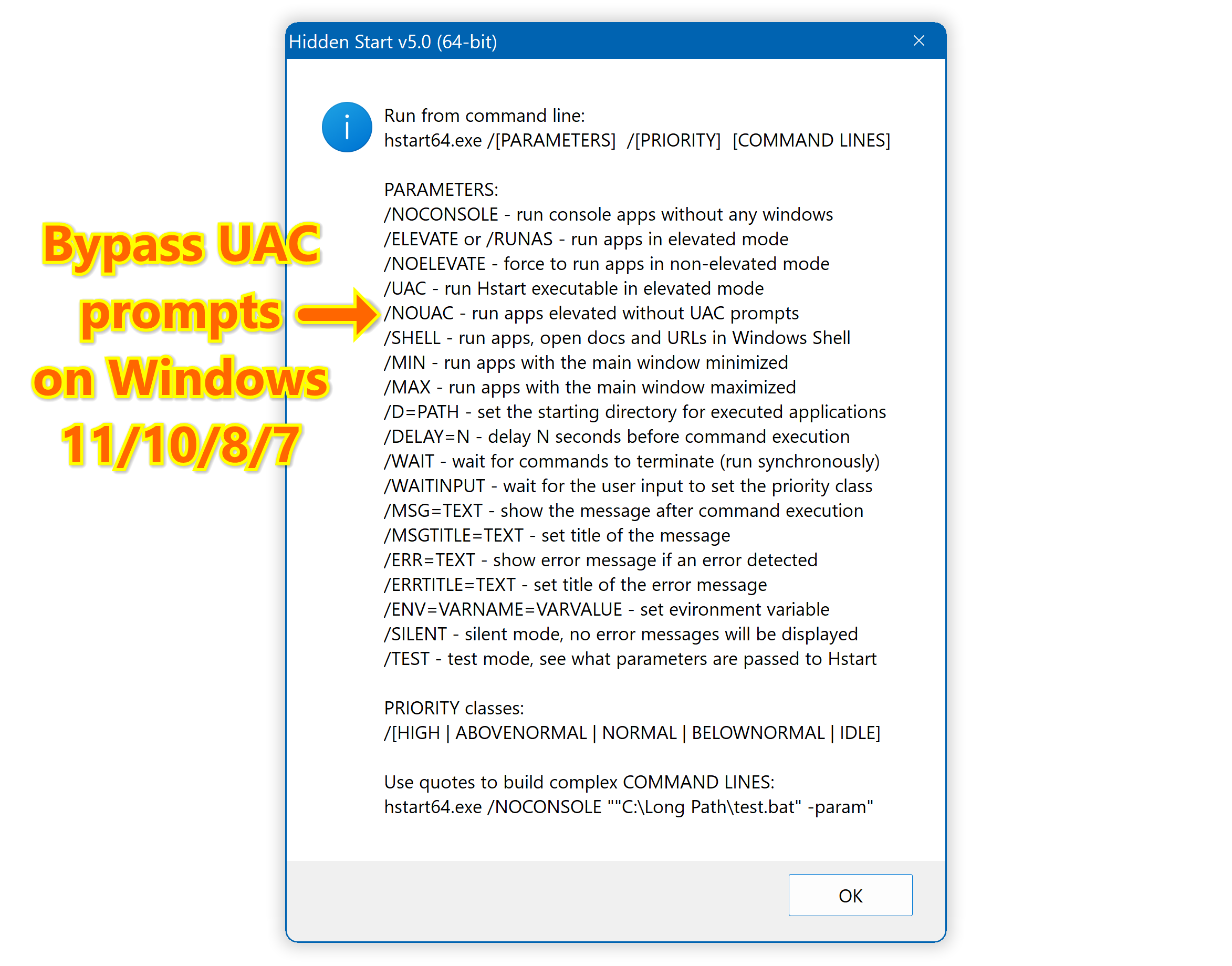
The /NOUAC switch allows you to run applications and batch files with administrative privileges without any UAC prompts. Here is a simple example:
Of course, it can be used with other options:
The following command opens Local Group Policy Editor:
And here is how to open Windows Hosts file for editing:
Environment Variables
As you can see from the previous example, Hstart 5.x expands environment variables in the executed command lines. This may help you to make more system independent commands:
"cmd.exe /c "D:\test.bat > test-output.txt""
""%ProgramFiles%\EmEditor\emeditor.exe" test-output.txt"
For more information, see tutorials and browse the "examples" folder.
Useful Additions
Use the /TRAY switch to run applications and batch files minimized to tray:
The /MIN and /MAX switches can be used for GUI apps to set the minimized or maximized window state:
/DELAY=N allows you to run commands with a specified delay in seconds which can be useful for startup items and long sequence of tasks:
Download the free trial version of Hstart to make sure it is useful to you!
Home • Windows • Hidden Start